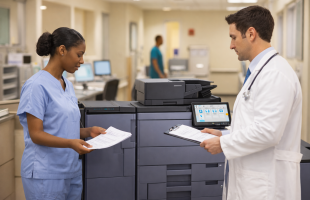


Best copier settings for high-quality scans in medical offices start with choosing the right resolution, color mode, and file format, then saving those choices as easy presets on your Kyocera or Konica Minolta multifunction device. When paired with local support and preventive maintenance from Document Solutions, these settings help medical teams capture legible charts, insurance cards, and records while keeping workflows fast and compliant.
Why Scan Quality Matters in Medical Offices
High-quality scans are critical for reading small text on prescriptions, lab reports, EHR paperwork, and avoiding re-scans that slow down front-desk and clinical staff. Document Solutions supports medical practices across New Jersey with copier leasing, managed print, and IT services that keep your scanning workflows reliable and secure.
Start with the Right Resolution (DPI)
On Konica Minolta devices, use “Fine,” “Super Fine,” or “Ultra Fine” scan modes when documents contain small characters or detailed forms. For most medical paperwork, 300 dpi is sufficient, but for consent forms with fine print or older faxed records, step up to higher-quality modes to ensure legibility.
Kyocera multifunction devices also allow adjustment of scan resolution so you can balance clarity with file size for EHR uploads and secure email. Document Solutions technicians are trained in your specific products and can help your practice standardize default resolutions across your fleet.
Choose the Best Color Mode for Each Job
Konica Minolta systems let you select Auto Color, Full Color, Grayscale, or Black depending on whether you are scanning color images, half-tone documents, or pure text. For medical offices, use:
- Grayscale for black-and-white documents with shaded areas, like ECG printouts or forms with shaded fields.
- Black for simple line drawings or pure text, such as prescriptions or referral letters.
On Kyocera devices, color selection options such as black-and-white versus full color help you control both legibility and file size when scanning ID cards, insurance cards, or color lab reports. Document Solutions emphasizes preventive maintenance and training, so your staff understands when to use each mode to save time and improve efficiency.
Use Text and Photo Modes to Sharpen Clinical Details
Konica Minolta’s image-type settings allow you to optimize scans for text, text/photo, or copied paper. In a medical office, this means:
- Use Text mode for physician notes, consents, and referral letters; it sharpens character edges to make small handwriting or typed text easier to read.
- Use Text/Photo for medical forms that combine text with diagrams or printed photos.
These settings work especially well for multi-page intake packets and educational materials that need to be stored in a patient’s record. Document Solutions’ skilled technical specialists can configure and review these defaults during installation to match your medical workflow.
Control Background, Density, and Duplex Scanning
Konica Minolta systems provide background removal and density controls to handle thin forms, colored paper, or older records with bleed-through. Use:
- Background Removal or other background tools to prevent printing from the back side of thin forms from showing through on the scan.
- Density adjustments (lighter/darker) to improve contrast on faded fax copies, older charts, or carbon-copy forms.
Kyocera devices offer density controls and one- or two-sided (duplex) scanning to speed up front-desk workflows when scanning multi-page charts.
Create Scan Workflows and Presets for Staff
Kyocera scanning workflows allow you to save favorite combinations of resolution, color, and destinations, which are ideal for repetitive medical tasks like scanning to your EHR folder or billing department. Staff can select a preset (for example, “Charts to EHR” or “Insurance to Billing”) and scan without reconfiguring settings every time.
Konica Minolta devices also support saving scan settings so medical teams can quickly choose the right combination for lab forms, ID cards, or multi-page intake packets. Document Solutions provides comprehensive training programs to ensure your front desk and clinical staff know how to access and use these presets.
Support, Security, and Reliability from Document Solutions
Medical offices depend on consistent uptime, and Document Solutions backs Konica Minolta and Kyocera fleets with preventive maintenance, strong inventory control for parts, and response times better than the industry average.
As a local, all-in-one provider, Document Solutions combines copier and printer leasing with managed IT to improve information security and protect sensitive medical data. Many clients highlight the team’s responsiveness and dedication to keeping mission-critical devices like copiers and scanners running smoothly.
Frequently Asked Questions
What scan resolution should a medical office use?
Most medical documents are clear at standard or “Fine” resolutions, roughly equivalent to 300 dpi, but forms with very small text or low-quality originals benefit from higher modes such as “Super Fine” or “Ultra Fine” on Konica Minolta systems. Document Solutions can help you set practice-wide defaults, so staff do not have to decide each time they scan.
Should medical documents be scanned in color or black and white?
Use black and white or grayscale for standard forms, prescriptions, and letters to keep file sizes manageable, and reserve full color for documents where color carries clinical meaning, such as lab highlights, photos, or imaging summaries. Both Kyocera and Konica Minolta devices supported by Document Solutions offer easy color-selection options at the panel.
How can we speed up scanning without losing quality?
Create scan presets or workflows for common tasks, choose appropriate resolution levels (not higher than necessary), and use duplex scanning for multi-page charts. With preventive maintenance and tuned settings, Document Solutions helps medical offices in New Jersey keep scanning fast, accurate, and dependable.
Contact Us
Medical offices across New Jersey rely on Document Solutions to simplify copier leasing, scanning workflows, and ongoing maintenance for Konica Minolta and Kyocera devices. To optimize your scan settings for high-quality medical records (and to explore flexible leasing options for office copiers and printers), visit https://www.dsbls.com/copiers-and-printers/ or contact the Document Solutions team for a consultation. Call (888) 880-3377, or contact us here! To learn more about copier and printer management tools for healthcare professionals, check out PrintFleet and PaperCut!