
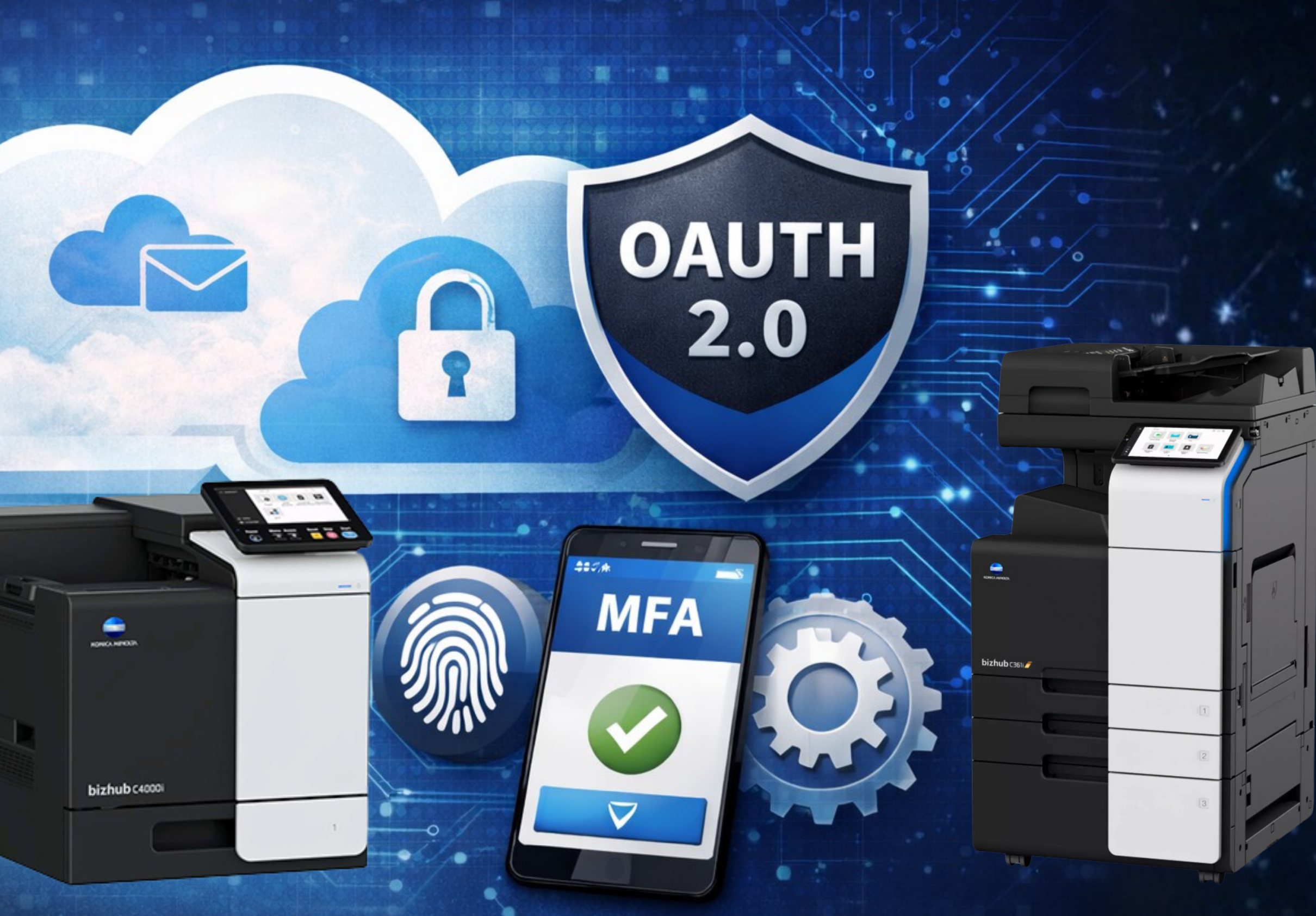
Scan to Email is one of the most widely used features on Konica Minolta copiers. When it is configured correctly, it allows teams to move documents quickly, reduce manual steps, and keep workflows flowing smoothly. As Microsoft 365 continues to modernize its security framework, ensuring that your copier authenticates properly is an important part of maintaining reliability.
OAuth 2.0 enablement is a positive and proactive step that helps Konica Minolta devices stay aligned with Microsoft 365’s modern authentication standards. It supports secure sign-in, works alongside multi-factor authentication, and helps ensure Scan to Email continues to function consistently as Microsoft updates its platform.
In this guide, we will explain:
- Why OAuth 2.0 is needed for Konica Minolta Scan to Email with Microsoft 365
- What you need before you begin
- Step-by-step instructions to enable OAuth correctly
- Common tips to ensure a smooth setup
- Answers to frequently asked questions
If you are evaluating your copier environment or want to ensure your devices are configured for long-term success, Document Solutions supports businesses with dependable copier and printer solutions.
Why OAuth 2.0 Is Important for Konica Minolta Scan to Email
Microsoft 365 has steadily moved away from older sign-in methods in favor of modern authentication. OAuth 2.0 is Microsoft’s recommended approach and is designed to support stronger security without adding unnecessary friction for users.
For Scan to Email, this matters because many older copier configurations relied on basic authentication methods that no longer align with Microsoft 365’s security expectations. When security policies evolve or multi-factor authentication is introduced, those older configurations may stop working even though the copier itself has not changed.
OAuth 2.0 helps prevent that disruption by allowing the device to authenticate securely using a modern authorization flow.
The operational benefits
Beyond security, OAuth enablement supports smoother daily operations:
- Improved compatibility with Microsoft 365 security settings
- Support for MFA-enabled accounts
- Reduced credential-related Scan to Email failures
- A more future-ready copier configuration
- Fewer unexpected service interruptions
This makes OAuth a smart, forward-looking upgrade rather than a reactive fix.
What You Need Before You Begin
Requirements
- A Konica Minolta device that supports OAuth 2.0 for Scan to Email
- GC2-RF firmware or newer installed on the device (see why printer firmware updates matter here!)
- A Microsoft 365 mailbox to use as the Scan to Email sender
- Access to the Microsoft Authenticator app if MFA is enabled
- Administrative access to Microsoft 365 to confirm SMTP authentication settings
Important configuration note
OAuth settings are typically accessed directly from the device panel or the remote panel interface. On some models, these options are not available through the standard web browser interface.
How to Enable OAuth 2.0 for Konica Minolta Scan to Email with Microsoft 365
Step 1: Confirm and Load the Correct Firmware
Start by verifying the firmware version on the device.
- The copier must be running GC2-RF firmware or newer
- If it is not, update the firmware first
- Reboot the device after the update so new features load correctly
OAuth options will not appear if the firmware requirement is not met.
Step 2: Log In as Administrator
At the device panel or remote panel:
- Enter Administrator mode
- Navigate to System Settings
- Select Machine Settings
This ensures you are working with the correct permissions.
Step 3: Verify the “From” Email Address
Within System Settings and then Machine Settings:
- Confirm the email address configured on the device
- This address must match the Microsoft 365 account you will authenticate with later
Many organizations choose a dedicated mailbox, such as [email protected], to keep Scan to Email management simple and consistent.
Step 4: Configure SMTP Settings
Navigate through the following menu path:
Network → Email Settings → SMTP Settings
Enter the Microsoft 365 SMTP submission settings exactly as shown:
- SMTP Server: smtp.office365.com
- Security Method: Start TLS
- Port: 587
These values are required for Microsoft 365 and should not be changed.
Step 5: Enable OAuth 2.0
Scroll down within the SMTP settings menu and:
- Enable OAuth 2.0
- Select Microsoft as the provider
- Select OK to proceed
This switches the device to Microsoft’s modern authentication method.
Step 6: Authenticate the Microsoft 365 Account
After enabling OAuth:
- The Microsoft login screen will appear on the device
- Enter the Microsoft 365 email and password
- Complete sign-in using the Microsoft Authenticator app if prompted
- Once authentication is successful, select OK (after receiving an ‘acquired’ message)
- Select OK again to save the configuration
The device will now use OAuth tokens for Scan to Email.
Step 7: Enable SMTP Authentication in Microsoft 365
Log in to the Microsoft 365 Admin Center separately and confirm the following setting:
- Go to Users and then Active Users
- Select the Scan to Email mailbox
- Open Mail settings
- Choose Manage email apps
- Ensure Authenticated SMTP is enabled
If this setting is disabled, Scan to Email may not work even if OAuth authentication is successful.
Step 8: Test Scan to Email
Once all settings are saved:
- Send a test scan to an internal email address
- Then send a scan to an external address
Successful delivery confirms the setup is complete.
Helpful Tips for a Smooth Experience
If Scan to Email does not work immediately, these checks often resolve issues quickly:
- Confirm firmware is GC2-RF or newer
- Ensure the From address matches the authenticated mailbox
- Verify Start TLS and port 587 are selected
- Confirm Authenticated SMTP is enabled in Microsoft 365
- Make sure OAuth was completed from the device panel or remote panel
Frequently Asked Questions
What is OAuth 2.0 in simple terms?
OAuth 2.0 is a modern authentication method that allows the copier to securely connect to Microsoft 365 without relying on older password-based sign-ins.
Does OAuth work with multi-factor authentication?
Yes. OAuth is designed to work with MFA and supports Microsoft Authenticator during sign-in. Learn more about the importance of MFA here.
Why is Authenticated SMTP still required?
Authenticated SMTP allows the device to send email through smtp.office365.com. OAuth handles authentication, but SMTP AUTH must still be enabled for message delivery.
Can I use a shared mailbox?
Some environments do, but a dedicated licensed mailbox is often the simplest and most reliable option for Scan to Email.
Why did Scan to Email stop working suddenly?
This often happens after Microsoft 365 security changes or MFA rollouts. OAuth enablement helps align the device with those updates.
Keep Scan to Email Working Confidently
OAuth enablement is one of the best ways to keep Konica Minolta Scan to Email reliable, secure, and aligned with Microsoft 365’s modern environment. When configured correctly, it supports smoother workflows today and helps prevent unexpected issues tomorrow.
If you want help configuring OAuth, reviewing your copier setup, or planning future upgrades, Document Solutions is here to help. Call us at (888) 880-3377 or fill out the form below to learn how we can optimize your print environment with our services, printers, and copiers today!
- Categories: